Want to sign in with your Apple ID but forgot your Apple ID password? Don't panic, because there are still plenty of options to recover your password. In this tip you can read how to recover your Apple ID password.
Forgot Apple ID password
You need an Apple ID to use an iPhone, iPad or Mac. An Apple ID consists of an email address and a password of your choice. But what can you do if you forgot your Apple ID password? In this tip we show you how to recover your Apple ID password, so that you can access your own Apple ID again. If you have lost your Apple ID password, read on quickly.
- Via Apple ID website
- Via iPhone, iPad and Mac
- Device from family or friends
- Recover Apple ID
- Requirements
Recover Apple ID password via website
The way to recover forgotten Apple ID password via the Apple ID website varies by security method. Everything related to your Apple ID can be arranged on the website https://appleid.apple.com, where you can indicate that you have lost your password. But you can also do it directly at https://iforgot.apple.com/.

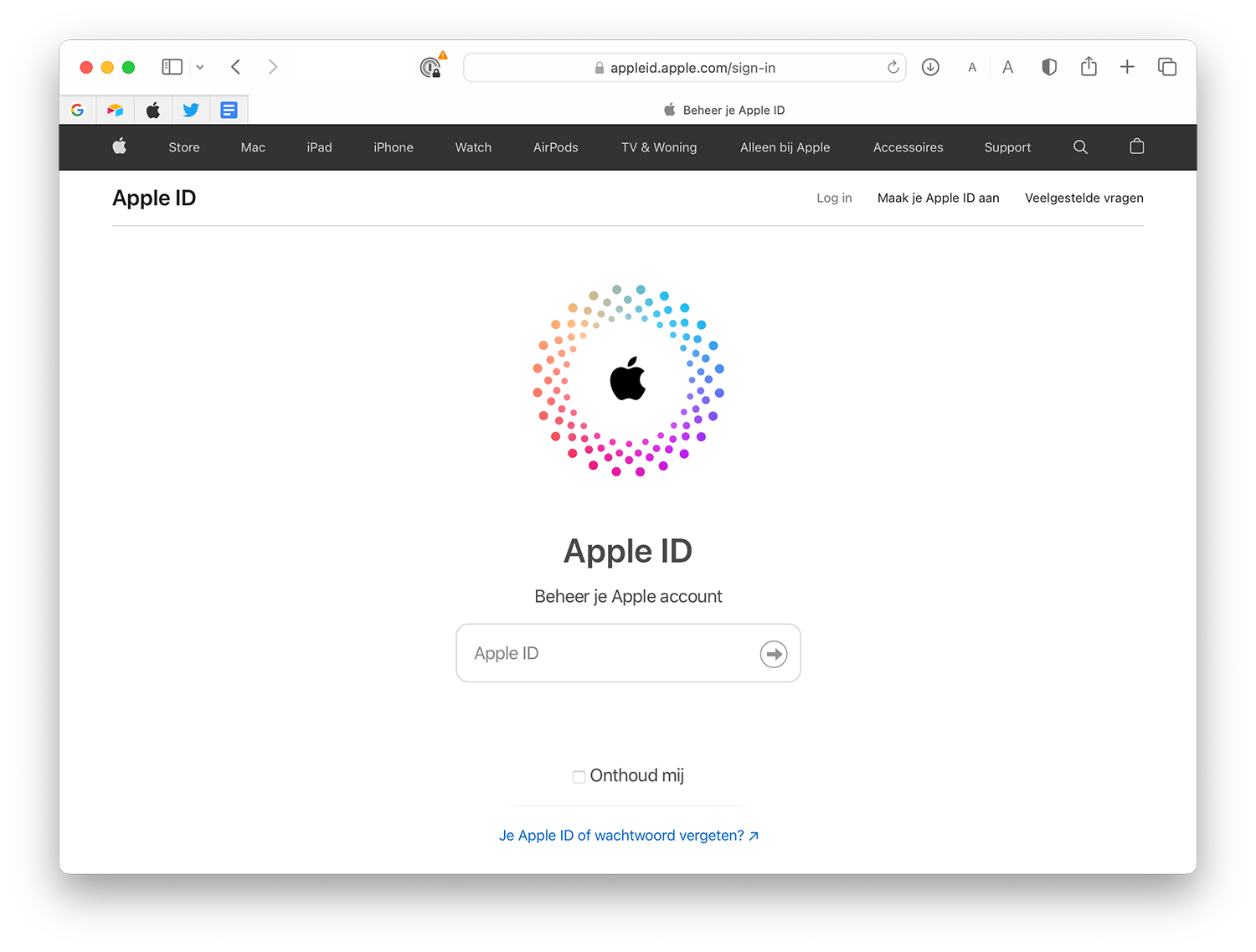
If you use two-factor authentication, it works like this:
- Visit the Apple ID forgotten password website.
- Enter your Apple ID. This is usually your own email address. You can possibly look this up on an iPhone, iPad or Mac. On an iPhone and iPad, go to Settings > your name and on a Mac go to System Preferences > iCloud.
- If necessary, enter the full phone number that you use with your Apple ID for verification.
- Your list of trusted devices will appear. A notification will be sent to these devices that will allow you to reset your password.
- On the notification, tap Allow and enter your passcode. Now choose a new password and tap Change.


Use your two-step verification, then you can recover your Apple ID password as follows:
- Go to the Apple ID forgotten password website.
- Click on Your Apple Forgot your ID or password?
- Enter your Apple ID. This is usually your own email address. You can possibly look this up on an iPhone, iPad or Mac. On an iPhone and iPad, go to Settings > your name and on a Mac go to System Preferences > iCloud.
- Enter the recovery code you received after setting up two-step verification.
- Choose a trusted device from the list. Then enter the code that is displayed on the trusted device.
- Create a new password and choose Reset password.
Don't have two-factor authentication or two-step verification set up and use the security questions for your Apple ID, follow the steps below. You can also follow these steps if you're not sure how secure your account is:
- Visit the Apple ID website for forgotten passwords.
- Enter your Apple ID. This is usually your own email address. You can possibly look this up on an iPhone, iPad or Mac. On an iPhone and iPad, go to Settings > your name and on a Mac go to System Preferences > iCloud.
- Choose to reset your password.
- You can now choose from two options: restore via security questions or via email. If you know the answers to your security questions, select that option. If you prefer to receive an e-mail, choose Receive an e-mail.
- Then follow the further steps in answering the security questions or the instructions in the e-mail to recover your password .
Recover Apple ID password from iPhone, iPad and Mac
You can also reset your password on iPhone, iPad and Mac, but this is only possible if you have two-factor authentication set up. It also only works if you are already logged in on the chosen device. Then follow these steps:
iPhone and iPad (iOS 10 and above)
- Go to Settings > your name > Password and security.
- Then tap Change password.
- Now enter your passcode from your iPhone or iPad.
- Under New enter a new password. At Verify you repeat your new password. The password must consist of at least eight characters, a number, an uppercase letter and a lowercase letter.
Mac
- Open System Settings and click on your account name at the top.
- Click on Password and Security.
- Now choose Change password.
- First enter the password of your Mac. Then choose a new Apple ID password.

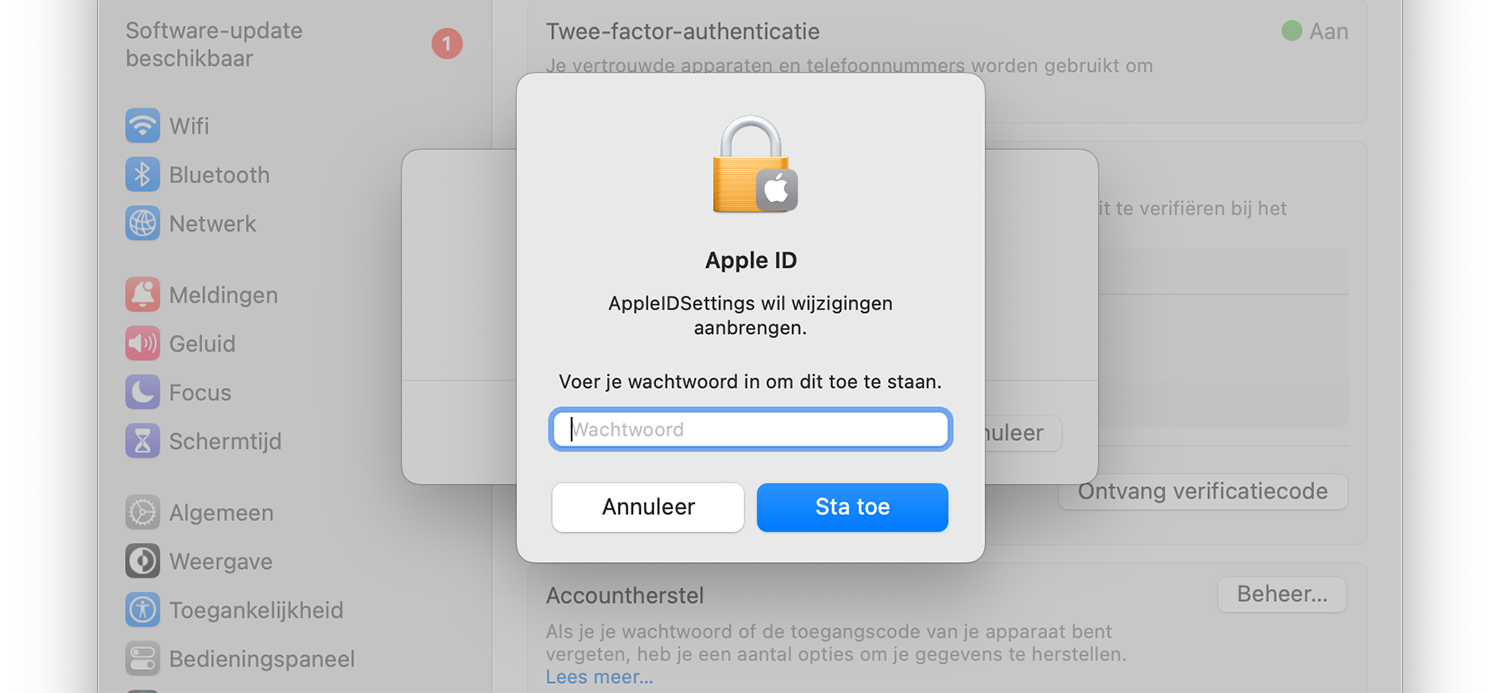
Can't do this? Then you will find the Account recovery option on the same screen, where Apple lists several options to retrieve or reset your password. ” />
Set up account recovery and a recovery contact for your Apple ID: this is how you do it
Do you always want to have access to your Apple ID? Then you can set a trusted contact for Account Recovery. This recovery contact can help you sign back into your Apple ID in an emergency.
Use family or friends' device when Apple ID password is forgotten
If you no longer have your own device, but still want to retrieve your Apple ID password, then you can do that with a friend or family member's iPhone or iPad. You use the Find my iPhone app for this. This works like this:
- Open the Find My iPhone app on the borrowed device.
- Go to the login screen. If you are already logged in with the Apple ID of the owner of the device, log out first.
- Make sure the Apple ID field is empty. If the owner's Apple ID is listed here, remove it.
- Now tap Forgot your Apple ID or password? and follow the prompts.
You can also try these steps on a device in the Apple Store. Ask for the employees who can help you with this.
Recover Apple ID when password is forgotten
If the above methods fail to access your Apple ID, you need to recover your Apple ID. Please note that there is a waiting period, because Apple needs to verify your identity. How to recover your Apple ID:
- Go to the Apple ID website and choose Forgot your Apple ID or password?.
- Enter as much information as possible there. At a certain point, a message appears that the waiting time has started. Click Continue anyway and answer the follow-up questions to initiate the recovery process.
It may then take a few days or more before you can recover your password. Eventually, Apple will contact you so that you can set a new password.
What are the requirements for an Apple ID password?
Apple has a number of requirements to an Apple ID password:
- The password must be at least eight characters.
- The password must contain a number, an uppercase letter and a lowercase letter.
- Use of spaces, three consecutive equal characters or an Apple ID password from the last year is prohibited.
A strong Apple ID password therefore consists of a combination of numbers and letters, with upper and lower case letters. If you have trouble remembering your password, use a password app for iPhone and iPad. Most password apps can also suggest strong passwords.
See also 


The best password apps for iPhone and iPad
Creating a different password for each service is a good idea, but this one Remembering them all is quite a chore. With these password apps for iPhone and iPad, you can safely store all your passwords.