
If you use iMessage a lot, then it is very useful if each person has the correct profile picture and name. This way you determine which profile picture others see of you by default, but you also have influence on the profile pictures and names. We explain it in this tip.
Set iMessage profile pictures and names
By providing each contact with a recognizable photo and name, you make iMessage much clearer. When you receive an incoming message, you can immediately see who it is by looking at the photo. By default you get a colored circle with initials, but you can easily customize this for yourself and for others. Your messages will then always have the correct contact photo and name. If you don't have a real photo, you can also use an Animoji or Memoji.
- Set a photo for yourself
- Set a photo for others
- Set name or nickname
Set iMessage profile picture for yourself
The steps you take to set your profile picture are different if you have enabled the filter for unknown senders. Either way, these steps will get you there:
- Open the Messages app.
- Tap Edit at the top left. Don't you see this? Then you have enabled the filter and you need to tap the three dots at the top right.
- Choose Edit name and photo.

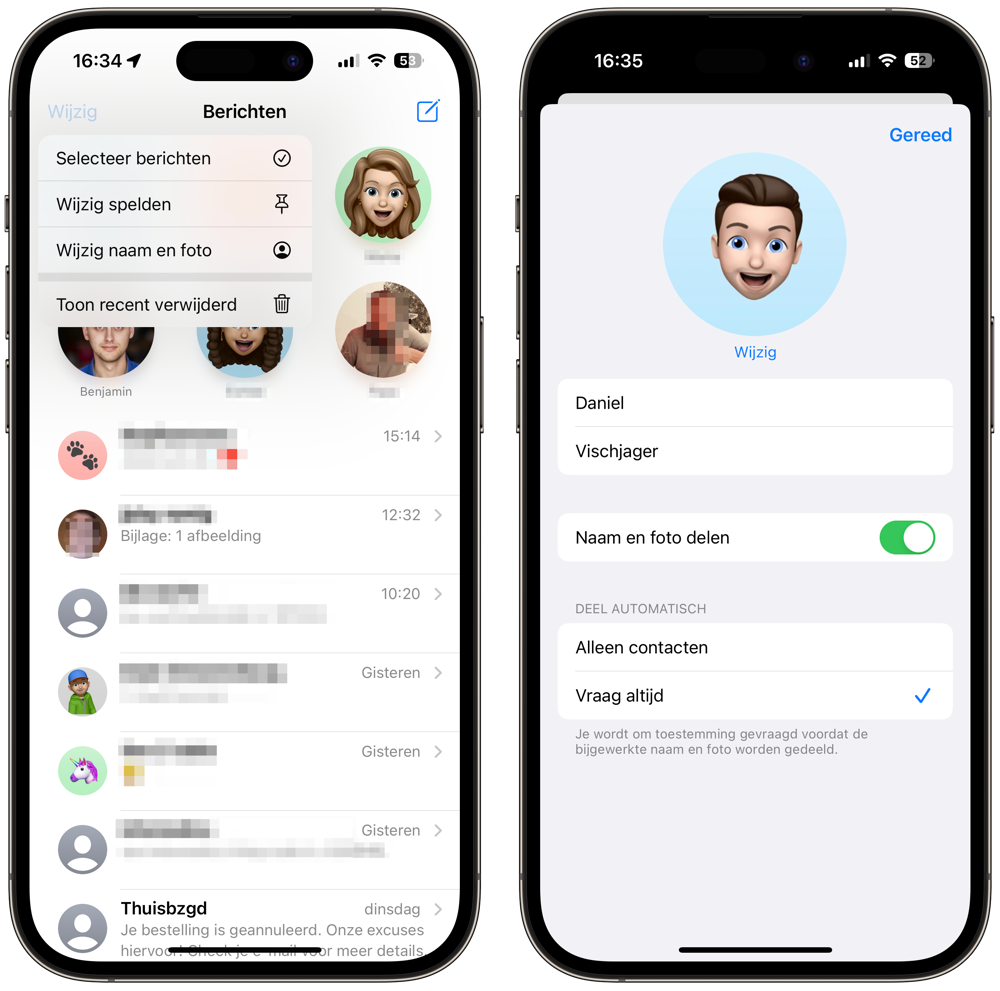

Choose profile picture: these are your options
< p>After you have reached your profile page via the steps above, it is time to actually adjust the photo. Here's how it works:
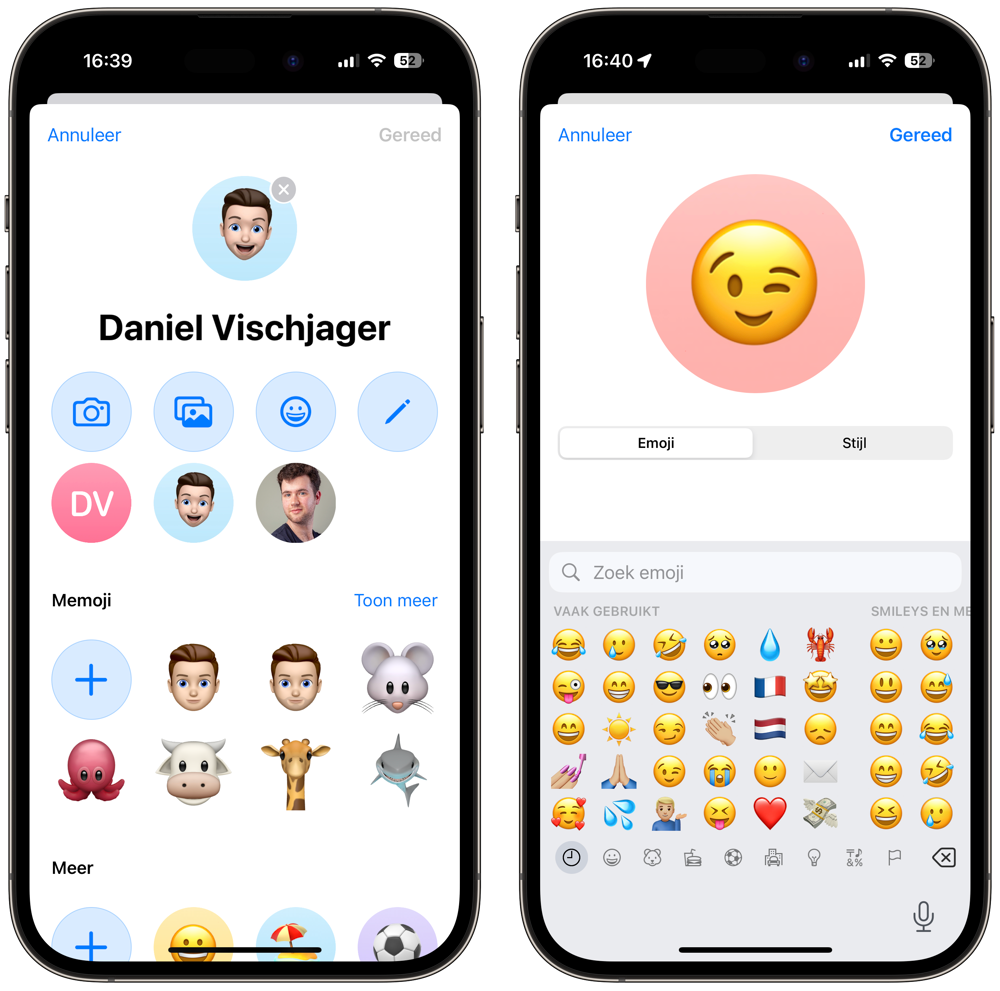
- Tap Change below the circle to set a different image.
- Choose a photo, emoji, text or one of the suggestions at the bottom of the image.
- Make sure the image is properly positioned in the circle.

Set iMessage profile picture for others
Others can of course also set a profile picture for themselves, which you will see by default. If a friend hasn't set a profile picture, or a picture you hate, you can change it. You do this by setting a different photo for this person in the address book. This only affects what you see, so the contact won't notice.
- In iMessage, tap the contact at the top of the conversation.
- Then choose the Info button.< /li>
- Tap Edit and under the photo, tap Edit again.
- Set another photo.
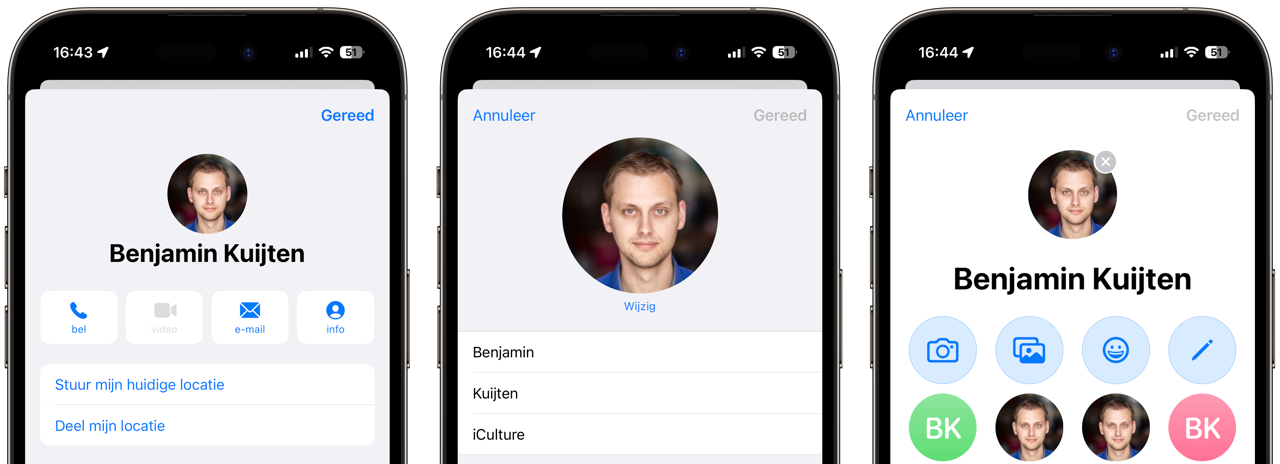


This photo will now also appear in iMessage and other apps that use the contact list. If this friend has a new contact photo, you will receive a notification. You can then choose to use this new contact photo or the image you chose yourself.
Set iMessage name or nickname
You can also set a screen name in iMessage, both for yourself and for others. This may be a different name than the one in your address book. Your chosen name will be shown to people who have not registered you as a contact in the address book. Setting the iMessage screen name is the same as changing the photo. You tap Edit or the three dots, depending on your chosen filter settings.
You can also edit the friend's name. You use a trick for this, namely the Nickname field in the address book. This is useful, for example, if you only want to see friends' first names instead of their full first and last names.
- Open the Contacts app and browse to the person you want.
- Tap Edit.
- Scroll down and tap Add field.
- Tap Nickname.
- Enter a nickname, for example first name only of the person.
- Tap Done.


We have even more tips about photos and contacts in iMessage:
- How to block contacts in iMessage and FaceTime
- Sharing contact cards via iMessage: this is how you do it
- Sending photos and videos with iMessage: this is how you do it