
Want to use Siri silently without sound? We've got three ways to do that so you don't get spoken feedback back from Siri when asking questions.
Use Siri silently and without sound
Siri talks back in voice when you give a voice command. This gives the assistant a somewhat more human character. But if there are people around you, it is more pleasant if you only see the text on the screen. You solve that by turning off Siri's speech. In this tip we explain three ways for a Siri without sound.
- Set silent responses
- With buttons
- Apple Watch
< /ul>
If you want to use Siri without sound, you can also choose to type Siri questions. However, this has the disadvantage that you have to type in all the questions, which can be annoying if you are doing the dishes, for example. However, there are alternatives, where you can record the questions to Siri, but do not receive spoken feedback from Siri.
See also 


Ask Siri without talking
With Siri also lets you type in questions without speaking. In this tip we explain how typing Siri questions works on the iPhone, iPad and Mac so that you can ask your questions silently.
Option 1: Silence Siri on your iPhone or iPad
On the iPhone and iPad, Siri gives a spoken answer by default. You can easily turn this off. To do this:
- Open the Settings app on your iPhone or iPad.
- Go to Siri and search > Siri Responses.
- You will see three options, choose Prefer Silent Responses.

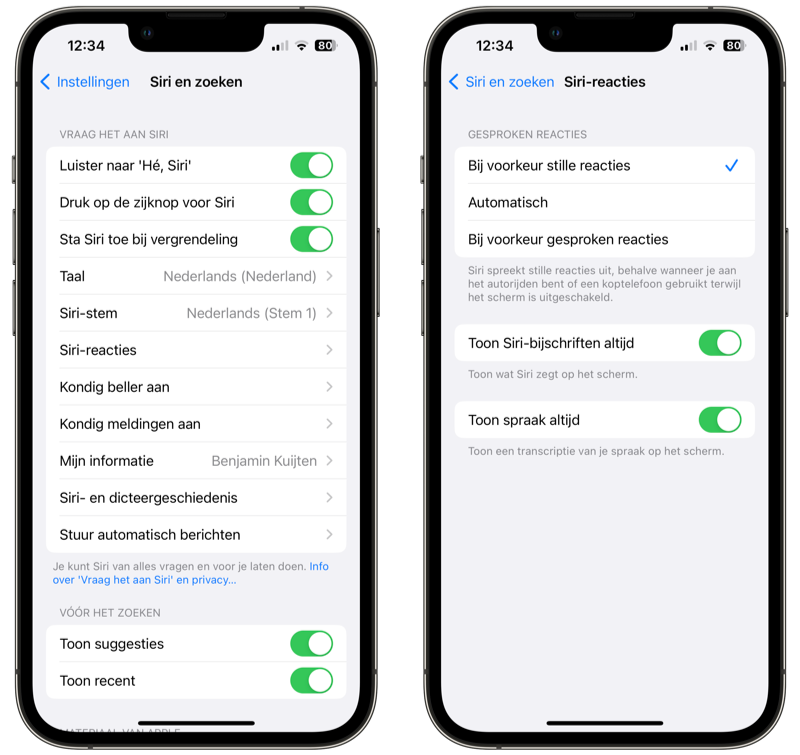

The Prefer Silent Responses option is new since iOS 16.2 and iPadOS 16.2. On older versions of iOS 16, you'll only find the Automatic and Preferred Voice Response options. If you are using an even older iOS version, you may still see the option Only with ‘Hé, Siri’. In that case, choose that option.
Siri only gives an audible sound signal if you are connected to a car kit or using Bluetooth headphones and the screen is off. In short: you can hear sound in the car and through your earplugs, but not when you ask Siri a question on the street. You will then only see text.
Option 2: Silence Siri with buttons
Previously, with the option When silent mode is off, it was possible to directly influence whether or not to give a voice response from Siri by the side switch. If you chose the option When silent mode is turned off for Siri responses, you will only receive spoken Siri responses if the side switch is off and the iPhone is not on mute.
This option has been replaced by the Automatic setting. If you choose Automatically, Siri will remain silent if your iPhone is on silent. But you can also use the volume buttons to make Siri be silent, even if he wants to talk according to the setting. This only works with the Automatic and Preferred Voice Responses options. This is how you do it:
- Press and hold the side button to summon Siri.
- Even before you ask a question, press the volume down button to mute Siri completely.
- Ask your question to Siri and you will notice that he answers with no or very low volume.
Option 3: Siri without sound on the Apple Watch
Want to ask Siri a question, but don't want the answer to be read aloud? Then use your Apple Watch!
- On the Apple Watch Series 0 to Apple Watch Series 2, Siri only shows the answer on the screen without reading it. So you don't have to do anything for this.
- If you have an Apple Watch Series 3 or newer, Siri will always speak the answer by default. You can disable this in Settings > Siri on the Apple Watch. Choose Always on, Rule with silent mode or Headphones only.
Another idea: Whisper to Siri
It would be helpful if you could whisper to Siri instead of speaking. It turns out that this is also possible, but there are some limitations. For example, it is difficult to activate Siri with ‘Hé Siri’ when you whisper. But once the assistant is activated, it works. Especially if you make a cup around the microphone with your hand, it is quite feasible to use Siri without disturbing other people.
With the AirPods you can also consult Siri, where you can read the answers in your ear whispered. You will still have to record the questions yourself.